
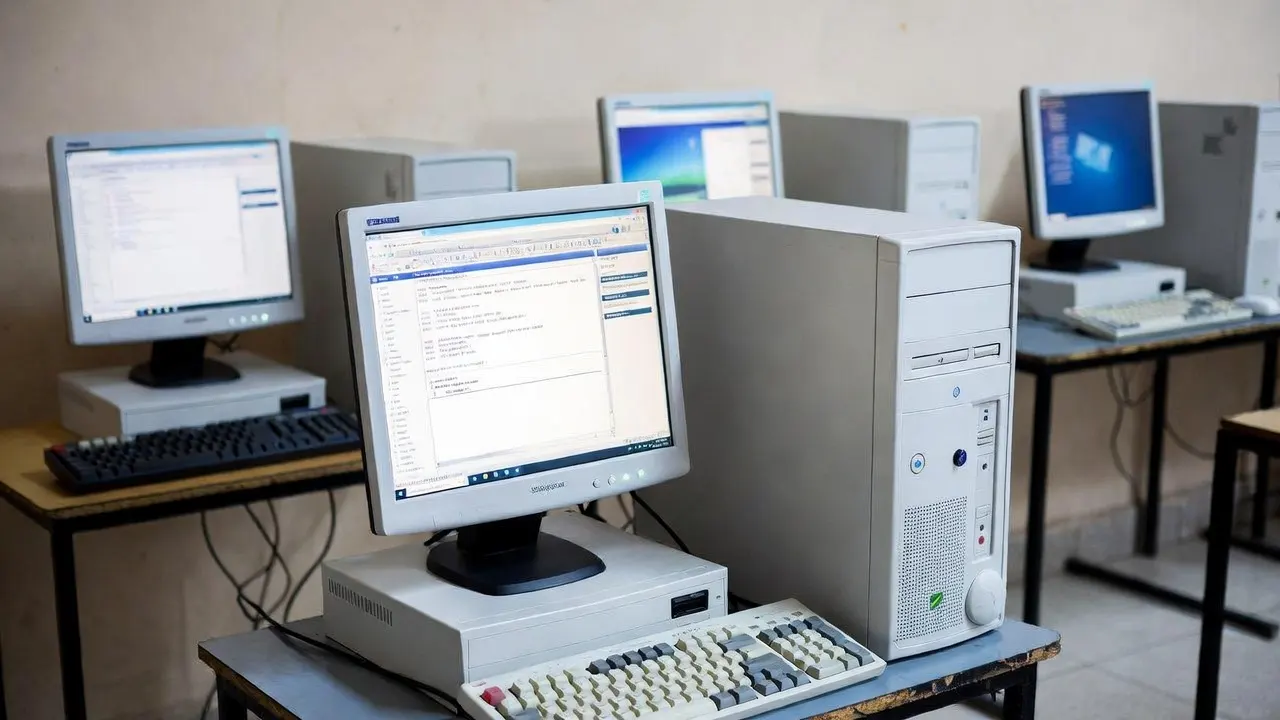
Why Browser Games Are Perfect for Low-End PCs and School Computers
Browser games for low end PC setups are an ideal solution for students and casual gamers who don't have access to expensive gaming hardware. These web-based games run directly in your browser, requiring minimal processing power, RAM, and storage space—making them perfectly suited for older school computers, budget laptops, and basic Chromebooks that can't handle demanding downloadable titles.
Introduction
Not every student has a gaming PC at home, and school computers are rarely built for performance. Browser games solve this problem by leveraging web technologies that work efficiently even on modest hardware. Instead of requiring powerful graphics cards, dedicated gaming CPUs, or large amounts of RAM, browser games distribute processing across optimized web frameworks and often rely on simple 2D graphics that any modern browser can handle smoothly.
For schools managing hundreds of aging computers or families working with hand-me-down laptops, browser games provide entertainment and educational value without requiring hardware upgrades. Because these games run in Chrome, Firefox, Edge, or Safari without installations, they also avoid the storage constraints that plague devices with limited hard drive or SSD space.
What Makes a PC "Low-End"?
Low-end PCs typically share several characteristics that make traditional gaming difficult. They often have older or budget processors (like Intel Celeron, Pentium, or older Core i3 chips), integrated graphics instead of dedicated GPUs, 4GB of RAM or less, and sometimes older mechanical hard drives that slow down loading times. Many school computers fall into this category because districts purchase affordable, durable machines designed for word processing and web browsing rather than gaming.
Chromebooks represent another category of low-end device—they're intentionally designed around cloud computing with minimal local storage (often 32-64GB) and processors optimized for web browsing rather than intensive applications. While these limitations make traditional gaming impossible, they're perfect for browser-based entertainment because Chromebooks are essentially optimized browser-gaming machines by design.
Older laptops from 5-10 years ago also fit the low-end category, even if they were once considered mid-range. As modern games demand more resources, yesterday's decent laptop becomes today's low-end PC—but browser games remain accessible because they were designed for broad compatibility from the start.
Why Browser Games Work on Limited Hardware
No installation overhead
Browser games eliminate the entire installation process, which saves both storage space and processing cycles. Traditional games require downloading gigabytes of data, unpacking files, and sometimes installing additional runtime libraries or drivers. Browser games simply load into a tab like any other website, using technologies already built into your browser.
This approach is particularly valuable on devices with limited storage. A 32GB Chromebook might struggle to install even one modern game after accounting for the operating system and essential apps, but it can run dozens of browser games without filling any storage—the game data streams as needed and doesn't leave permanent files on your device.
Optimized for web technologies
Modern browser games are built with HTML5, JavaScript, CSS, and sometimes WebAssembly—technologies specifically designed to run efficiently across different devices and browsers. These web standards have been refined over decades to work smoothly even on modest hardware, unlike proprietary game engines that might require cutting-edge GPUs to render properly.
2D browser games especially benefit from this optimization. Simple sprite-based graphics, tile-based maps, and straightforward animations require far less processing power than 3D rendering, particle effects, and complex physics simulations found in downloadable games. Even older integrated graphics chips can handle these lightweight visuals without frame rate drops or stuttering.
Server-side processing
Many browser games, particularly multiplayer titles and complex strategy games, handle heavy computational work on remote servers rather than your local machine. Your computer simply displays the results and sends your inputs back to the server. This distributed processing model means your low-end PC isn't responsible for all the game logic—it just needs to render the interface and maintain a stable internet connection.
Lower resolution and simplified graphics
Browser games typically run at modest resolutions and use simplified art styles that look good without demanding high-end rendering capabilities. Pixel art, flat design, and cartoonish graphics are common in browser games not just for aesthetic reasons but because these visual approaches work smoothly on any device. You can explore many of these games on Ozogames, where the emphasis on 2D and low-resource titles makes them ideal for school computers and budget hardware.
Best Browser Game Categories for Low-End PCs
Puzzle and logic games
Puzzle games represent the absolute best category for low-end PCs because they rarely require fast reflexes, high frame rates, or complex graphics. Games like 2048, Sudoku, Minesweeper, and match-three puzzles run smoothly on virtually any computer because they're turn-based or have simple animations that even the oldest integrated graphics can handle effortlessly.
These games are also perfect for school environments where computers might be 5-10 years old but still functional for educational purposes. A computer that struggles to open modern spreadsheets can still provide a smooth puzzle gaming experience during approved break time.
Word and typing games
Word games are exceptionally lightweight because they're primarily text-based with minimal graphics. Crosswords, word searches, Wordle-style challenges, and typing speed games require almost no processing power—they're essentially displaying letters and accepting keyboard input, which even computers from the early 2000s could handle.
For schools trying to combine entertainment with skill-building, word games offer the perfect combination: they run on ancient hardware while supporting literacy and vocabulary development. You can explore many of these games on Ozogames and find options that work reliably even on the oldest school computers.
Card and board games
Digital versions of classic card games (Solitaire, Hearts, Spades) and board games (Chess, Checkers, Reversi) are ideally suited for low-end PCs. These games have been optimized for decades and use minimal resources because their core mechanics are turn-based and their graphics requirements are essentially just displaying static card or board images.
Many students discover that browser-based card games actually load faster and run more smoothly than the pre-installed versions that came with Windows, especially if those built-in games have become bloated with ads or "premium" features in recent years.
Classic arcade games
Browser adaptations of classic arcade games—Snake, Tetris, Breakout, Pac-Man variants—are specifically designed to run on minimal hardware because they're recreating games that originally ran on 1980s arcade machines with tiny amounts of memory and processing power. These titles typically feature simple 2D graphics, straightforward collision detection, and modest animation requirements.
The "one more try" gameplay loop of arcade games also fits perfectly into short school break periods, making them ideal for both low-end hardware compatibility and educational scheduling constraints.
Turn-based strategy games
Unlike real-time strategy games that require processing hundreds of units simultaneously, turn-based strategy games work perfectly on low-end PCs. Since the game waits for your input before calculating the next move, there's no pressure on your processor to maintain a high frame rate or handle complex real-time physics.
Browser-based strategy games often use grid-based maps and simplified unit graphics, further reducing hardware demands. Students can enjoy thoughtful, engaging strategy gameplay on computers that would never handle modern downloadable strategy titles.
Performance Tips for Browser Gaming on Old Hardware
Use a lightweight browser
Not all browsers are created equal for low-end hardware. Chromium-based browsers (Chrome, Edge, Opera) are generally well-optimized but can be memory-intensive. Firefox often performs well on older hardware, and lightweight alternatives like Opera GX include built-in limiters that prevent the browser from consuming too many system resources.
For school computers locked to a specific browser, you'll need to work with what's installed, but at home, experimenting with different browsers can reveal surprisingly better performance for the same games.
Close unnecessary tabs and programs
Every open tab and background program consumes RAM and processing cycles. Before starting a browser game on a low-end PC, close all other tabs, shut down unnecessary programs running in the background, and consider restarting the computer if it's been running for days without a fresh boot.
This practice is especially important on computers with 4GB of RAM or less—a single Chrome browser with a dozen tabs might consume half the available memory before you even start playing a game.
Adjust browser settings
Disabling browser extensions, clearing cache and cookies, and turning off hardware acceleration (ironically) can sometimes improve performance on older machines. Hardware acceleration sounds like it should help, but on some older integrated graphics chips, it actually slows things down because the GPU is so outdated that software rendering performs better.
Choose simpler games
Even within browser games, some titles are more demanding than others. 3D browser games using WebGL might struggle on very old hardware, while 2D puzzle games will run smoothly. When working with truly ancient computers, stick to text-based games, simple puzzles, and classic card games rather than trying to push the hardware with more complex titles.
You can explore many of these games on Ozogames by browsing the puzzle and word game categories, which feature the most lightweight options that work reliably across all hardware levels.
School Computer Advantages
School computers, despite being low-end, actually have some advantages for browser gaming. They typically run fresh Windows or ChromeOS installations without the bloatware and unnecessary startup programs that plague consumer laptops. This clean software environment means more resources are available for the browser and games.
School networks are also usually reliable and fast, even if individual computers are old. Since many browser games stream content as needed rather than loading everything upfront, a good internet connection can partially compensate for weak local hardware.
Finally, school IT departments keep browsers updated for security reasons, which means you're usually running recent browser versions with the latest performance optimizations and web standard support—even if the computer itself is a decade old.
FAQ
Can browser games run on computers with 2GB of RAM?
Yes, though performance will be better with 4GB or more. Stick to simple 2D games, close all other programs, and use a lightweight browser. Puzzle games, word games, and classic arcade titles should work fine even with 2GB of RAM.
Do browser games work on Windows XP or Windows 7?
It depends on browser support. Windows XP cannot run modern browsers that support current web standards, making most contemporary browser games incompatible. Windows 7 can run recent browsers (though support is ending), so many browser games will work, though performance may be slower than on newer operating systems.
Are browser games better than mobile games on old hardware?
For old PCs specifically, yes. Browser games are optimized for keyboard and mouse input and designed for larger screens, while mobile games ported to PC often run poorly through emulation. However, the same old phone might run native mobile games better than browser games due to mobile-specific optimization.
Why do some browser games lag on my school Chromebook?
Even though Chromebooks are designed for web use, older models have very limited processors. Games using WebGL for 3D graphics or complex animations might struggle. Stick to simpler 2D games, ensure you're not running too many tabs, and check if your school network is congested during peak usage times.
What types of browser games should I avoid on low-end PCs?
Avoid 3D browser games, multiplayer shooters, games with heavy particle effects, and titles that explicitly list high system requirements. Also be cautious with browser games that have large initial loading screens—if a game takes several minutes to load on a low-end PC, it will likely perform poorly during gameplay too.
Conclusion
Browser games for low end PC users provide accessible entertainment that works within the constraints of older hardware, limited storage, and school-managed devices. By focusing on 2D graphics, turn-based gameplay, and web-optimized technologies, these games deliver genuine fun without requiring expensive upgrades or installations.
For students working with aging school computers or budget home laptops, you can explore many of these games on Ozogames and discover titles specifically suited to low-resource environments. The key is choosing puzzle games, word challenges, classic arcade recreations, and simple strategy titles that prioritize clever gameplay over graphical demands.
Whether you're playing on a 10-year-old school desktop, a basic Chromebook, or a hand-me-down laptop, browser games ensure that limited hardware doesn't mean limited fun—just smart choices about which games match your device's capabilities.
"Always follow your school, workplace, or organization's internet policies when accessing online content."